Dynamic Waybar CSS for OmarchyOS
Customizing Waybar CSS on Omarchy
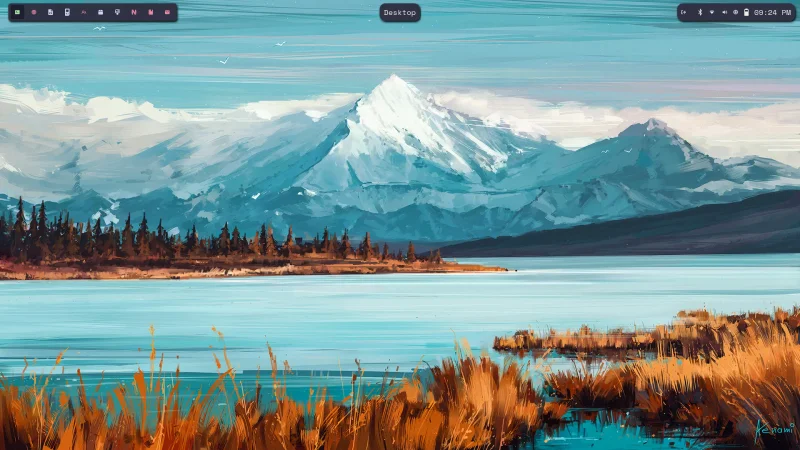
I have been loving running OmarchyOS. It’s a fantastic system for power-users such as myself. I must say though…I wasn’t a huge fan of the default Waybar styling that ships with the OS. I had to change that 🤔
I came up with a floating style modular Waybar config that I am quite fond of - only issue is that the bar was using hard-coded colors because the Omarchy Waybar CSS only exposes two CSS variables by default - foreground and background. No good.
Just today, however, I found a file located in ~/.config/omarchy/hooks called theme-set.sample. Interesting 🤔 We can work with this.
This file works by passing the switched-to theme as an argument via bash. Ready to theme your Waybar like never before? Let’s cook 🧑🍳
Step 1: Theme Hook
using this theme hook will conflict with theuser-bypass hook if you’re using that! Beware!
Start by renaming the file to theme-set (removing the .sample portion from the filename.) and make it executable. Simply run this command:
mv ~/.config/omarchy/hooks/theme-set.sample ~/.config/omarchy/hooks/theme-set && chmod +x ~/.config/omarchy/hooks/theme-setStep 2: Hook Code
Now let’s add some functionality to this file. Slap the following code in it to make it react to both of the built-in Catppuccin themes. This will make your Waybar react to both the light and dark versions of this amazing theme.
#!/bin/bash
# ~/.config/omarchy/hooks/theme-set

THEME_NAME=$1
COLOR_FILE="$HOME/.config/waybar/theme-colors.css"

case $THEME_NAME in
"catppuccin" | "catppuccin-mocha")
  # Catppuccin Mocha (Dark)
  rosewater="#f5e0dc"
  flamingo="#f2cdcd"
  pink="#f5c2e7"
  mauve="#cba6f7"
  red="#f38ba8"
  maroon="#eba0ac"
  peach="#fab387"
  yellow="#f9e2af"
  green="#a6e3a1"
  teal="#94e2d5"
  sky="#89dceb"
  sapphire="#74c7ec"
  blue="#89b4fa"
  lavender="#b4befe"
  text="#cdd6f4"
  subtext1="#bac2de"
  subtext0="#a6adc8"
  overlay2="#9399b2"
  overlay1="#7f849c"
  overlay0="#6c7086"
  surface2="#585b70"
  surface1="#45475a"
  surface0="#313244"
  base="#1e1e2e"
  mantle="#181825"
  crust="#11111b"
  ;;
"catppuccin-latte")
  # Catppuccin Latte (Light)
  rosewater="#dc8a78"
  flamingo="#dd7878"
  pink="#ea76cb"
  mauve="#8839ef"
  red="#d20f39"
  maroon="#e64553"
  peach="#fe640b"
  yellow="#df8e1d"
  green="#40a02b"
  teal="#179287"
  sky="#04a5e5"
  sapphire="#209fb5"
  blue="#1e66f5"
  lavender="#7287fd"
  text="#4c4f69"
  subtext1="#5c5f77"
  subtext0="#6c6f85"
  overlay2="#7c7f93"
  overlay1="#8c8fa1"
  overlay0="#9ca0b0"
  surface2="#acb0be"
  surface1="#bcc0cc"
  surface0="#ccd0da"
  base="#eff1f5"
  mantle="#e6e9ef"
  crust="#dce0e8"
  ;;
*)
  # Default fallback to Mocha if theme is unknown
  rosewater="#f5e0dc"
  flamingo="#f2cdcd"
  pink="#f5c2e7"
  mauve="#cba6f7"
  red="#f38ba8"
  maroon="#eba0ac"
  peach="#fab387"
  yellow="#f9e2af"
  green="#a6e3a1"
  teal="#94e2d5"
  sky="#89dceb"
  sapphire="#74c7ec"
  blue="#89b4fa"
  lavender="#b4befe"
  text="#cdd6f4"
  subtext1="#bac2de"
  subtext0="#a6adc8"
  overlay2="#9399b2"
  overlay1="#7f849c"
  overlay0="#6c7086"
  surface2="#585b70"
  surface1="#45475a"
  surface0="#313244"
  base="#1e1e2e"
  mantle="#181825"
  crust="#11111b"
  ;;
esac

# Write all tokens to the CSS file
cat <<EOF >"$COLOR_FILE"
@define-color rosewater $rosewater;
@define-color flamingo $flamingo;
@define-color pink $pink;
@define-color mauve $mauve;
@define-color red $red;
@define-color maroon $maroon;
@define-color peach $peach;
@define-color yellow $yellow;
@define-color green $green;
@define-color teal $teal;
@define-color sky $sky;
@define-color sapphire $sapphire;
@define-color blue $blue;
@define-color lavender $lavender;
@define-color text $text;
@define-color subtext1 $subtext1;
@define-color subtext0 $subtext0;
@define-color overlay2 $overlay2;
@define-color overlay1 $overlay1;
@define-color overlay0 $overlay0;
@define-color surface2 $surface2;
@define-color surface1 $surface1;
@define-color surface0 $surface0;
@define-color base $base;
@define-color mantle $mantle;
@define-color crust $crust;
EOF

# Signal Waybar to reload
# doesn't seem like we actually need this.
# killall -SIGUSR2 waybar
We’re well on our way to dynamic Waybar theming! Just one more thing to do: import our newly generated CSS file and apply the colors in our Waybar styling!
Step 3: Use Variables in Waybar
Be sure you switch your theme first before trying to use the CSS variables in it! You must switch your theme to activate the theme-hook we just wrote!
Find your Waybar CSS file at ~/.config/waybar/style.css and open it up. Now import the newly generated file with @import "theme-colors.css"; as the hook file generates it in our Waybar config folder. Access the variables using the @ syntax, e.x. background: @surface0; or color: @sky.
That’s pretty much it! Once you swap all your hard-coded colors for CSS variables and switch themes you’ll see your Waybar change to match!
Pretty damn cool, man! 🎉
Extra
My Theme
For brevity, here is my complete Waybar style.css:
@import "../omarchy/current/theme/waybar.css";
@import "theme-colors.css";

* {
  border: none;
  font-family: "SpaceMono Nerd Font Mono";
  font-size: 18px;
  padding: 0px;
  margin: 0px;
}

.modules-left {
  margin-left: 12px;
}

.modules-right {
  background: @surface0;
  padding: 2px 10px;
  margin: 8px 3px;
  border-radius: 14px;
  box-shadow: 2px 3px 3px black;
  margin-right: 12px;
}

.modules-center {
  background: none;
  box-shadow: 0 0 0 transparent;
}

#workspaces {
  margin: 8px 8px;
  padding: 0px 2px;
  background: @surface0;
  border-radius: 6px;
  font-size: 18px;
  box-shadow: 2px 3px 3px black;
  /* border: 1px solid @teal; */
}

window#waybar {
  background: none;
}

window#waybar #window {
  background: @surface0;
  padding: 2px 10px;
  margin: 8px 3px;
  border-radius: 14px;
  box-shadow: 2px 3px 3px black;
}

/* Hide the window title when no windows are open */
window#waybar.empty #window {
  background: @surface0;
  padding: 2px 10px;
  margin: 8px 3px;
  border-radius: 14px;
  box-shadow: 2px 3px 3px black;
}

#workspaces button.empty {
  color: @text;
}

/* workspaces with windows in them */
#workspaces button {
  color: @red;
  border: none;
  background: none;
  padding: 3px 8px;
  border-radius: 4px;
  margin: 4px;
  transition: all 0.3s ease-in-out;
}

#workspaces button.visible {
  background: transparent;
  color: @green;
}
#workspaces button.urgent {
  background: @base;
  color: @red;
  text-decoration: underline;
}

/* #workspaces button.persistent { */
/*   color: @yellow; */
/* } */

#workspaces button.active {
  background: @base;
  color: @green;
}

#workspaces button:hover {
  color: @green;
  background: @crust;
}

#cpu,
#battery,
#pulseaudio,
#custom-omarchy,
#custom-screenrecording-indicator,
#custom-update {
  min-width: 12px;
  margin: 0 7.5px;
}

#tray {
  margin-right: 16px;
}

#bluetooth {
  margin-right: 17px;
}

#network {
  margin-right: 13px;
}

#custom-expand-icon {
  margin-right: 18px;
}

tooltip {
  padding: 2px;
}

#custom-update {
  font-size: 10px;
}

#clock {
  margin-left: 5px;
}

.hidden {
  opacity: 0;
}

#custom-screenrecording-indicator {
  min-width: 12px;
  margin-left: 5px;
  font-size: 10px;
  padding-bottom: 1px;
}

#custom-screenrecording-indicator.active {
  color: @red;
}

#custom-voxtype {
  min-width: 12px;
  margin: 0 0 0 7.5px;
}

#custom-voxtype.recording {
  color: @red;
}
As well as my entire Waybar config (located at `~/.config/waybar/config.jsonc):
{
"reload_style_on_change": true,
"layer": "top",
"position": "top",
"spacing": 0,
"height": 32,
"modules-left": ["hyprland/workspaces"],
"modules-center": [
"hyprland/window",
"custom/update",
"custom/screenrecording-indicator",
],
"modules-right": [
"group/tray-expander",
"bluetooth",
"network",
"pulseaudio",
"cpu",
"battery",
"clock",
],
"hyprland/workspaces": {
"on-click": "activate",
"format": "{icon}",
"format-icons": {
"1": "",
"2": "",
"3": "",
"4": "",
"5": "",
"6": "",
"7": "",
"8": "",
"9": "",
"10": "",
"11": "",
"12": "",
},
"persistent-workspaces": {
"1": [],
"2": [],
"3": [],
"4": [],
"5": [],
"6": [],
"7": [],
"8": [],
"9": [],
},
},
"custom/omarchy": {
"format": "<span font='omarchy'>\ue900</span>",
"on-click": "omarchy-menu",
"on-click-right": "xdg-terminal-exec",
"tooltip-format": "Omarchy Menu\n\nSuper + Alt + Space",
},
"hyprland/window": {
"format": "{title}",
"icon": true,
"icon-size": 18,
"rewrite": {
"": "Desktop",
"nvim": " NeoCode $1",
},
},
"custom/update": {
"format": "",
"exec": "omarchy-update-available",
"on-click": "omarchy-launch-floating-terminal-with-presentation omarchy-update",
"tooltip-format": "Omarchy update available",
"signal": 7,
"interval": 3600,
},
"cpu": {
"interval": 5,
"format": "",
"on-click": "omarchy-launch-or-focus-tui btop",
},
"clock": {
"format": "{:%I:%M %p}",
"format-alt": "{:%a, %b %d, %Y}",
"tooltip-format": "<big>{:%A, %d %B %Y}</big>",
"tooltip": true,
"on-click-right": "omarchy-launch-floating-terminal-with-presentation omarchy-tz-select",
},
"network": {
"format-icons": ["", "", "", "", ""],
"format": "{icon}",
"format-wifi": "{icon}",
"format-ethernet": "",
"format-disconnected": "",
"tooltip-format-wifi": "{essid} ({frequency} GHz)\n⇣{bandwidthDownBytes} ⇡{bandwidthUpBytes}",
"tooltip-format-ethernet": "⇣{bandwidthDownBytes} ⇡{bandwidthUpBytes}",
"tooltip-format-disconnected": "Disconnected",
"interval": 3,
"spacing": 1,
"on-click": "omarchy-launch-wifi",
},
"battery": {
"format": "{capacity}% {icon}",
"format-discharging": "{icon}",
"format-charging": "{icon}",
"format-plugged": "",
"format-icons": {
"charging": ["", "", "", "", "", "", "", "", "", ""],
"default": ["", "", "", "", "", "", "", "", "", ""],
},
"format-full": "",
"tooltip-format-discharging": "{power:>1.0f}W↓ {capacity}%",
"tooltip-format-charging": "{power:>1.0f}W↑ {capacity}%",
"interval": 5,
"on-click": "omarchy-menu power",
"states": {
"warning": 20,
"critical": 10,
},
},
"bluetooth": {
"format": "",
"format-disabled": "",
"format-off": "",
"format-connected": "",
"format-no-controller": "",
"tooltip-format": "Devices connected: {num_connections}",
"on-click": "omarchy-launch-bluetooth",
},
"pulseaudio": {
"format": "{icon}",
"on-click": "omarchy-launch-audio",
"on-click-right": "pamixer -t",
"tooltip-format": "Playing at {volume}%",
"scroll-step": 5,
"format-muted": "",
"format-icons": {
"headphone": "",
"default": ["", "", ""],
},
},
"group/tray-expander": {
"orientation": "inherit",
"drawer": {
"transition-duration": 600,
"children-class": "tray-group-item",
},
"modules": ["custom/expand-icon", "tray"],
},
"custom/expand-icon": {
"format": " ",
"tooltip": false,
},
"custom/screenrecording-indicator": {
"on-click": "omarchy-cmd-screenrecord",
"exec": "$OMARCHY_PATH/default/waybar/indicators/screen-recording.sh",
"signal": 8,
"return-type": "json",
},
"custom/voxtype": {
"exec": "omarchy-voxtype-status",
"return-type": "json",
"format": "{icon}",
"format-icons": {
"idle": "",
"recording": "",
"transcribing": "",
},
"tooltip": true,
"on-click-right": "omarchy-voxtype-config",
"on-click": "omarchy-voxtype-model",
},
"tray": {
"icon-size": 12,
"spacing": 12,
},
}It makes a style like this:
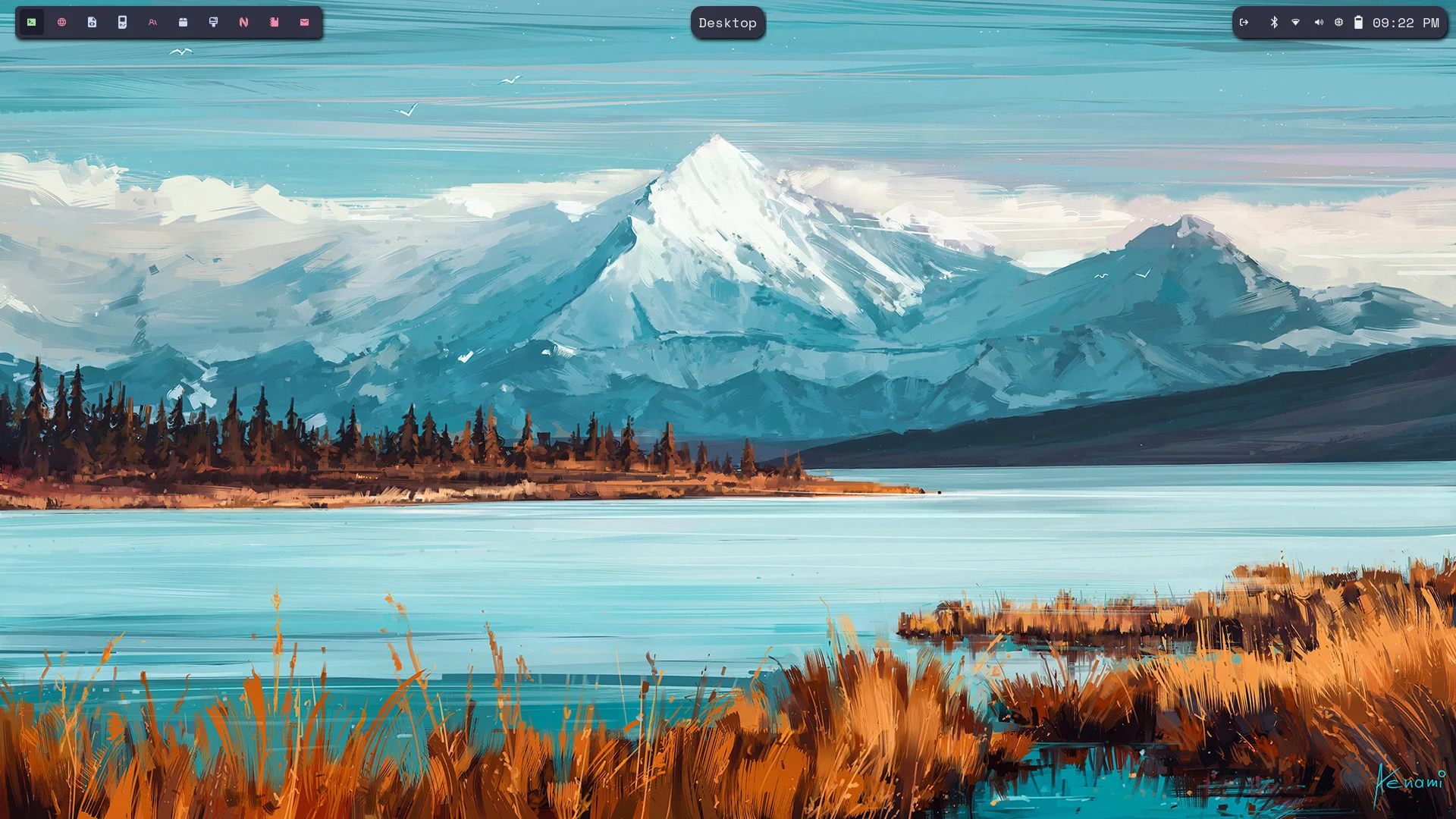
I think it’s pretty damn snazzy looking. Hope you enjoyed and learned something! 👏
Light/Dark Toggle Keybind
If you’re like me you are rather temperamental about when you want light/dark mode on. I made a little script that allows toggling between light/dark Catppuccin themes.
Make a file in your ~/.local/bin called theme-toggle and make it executable. Add the following code to the file:
#!/bin/bash
# ~/.local/bin/theme-toggle

# Get the exact name from the Omarchy utility
CURRENT=$(omarchy-theme-current)

if [ "$CURRENT" == "Catppuccin Latte" ]; then
  # If currently light, switch to dark
  # Note: Use the exact command you use to set themes (e.g., 'omarchy theme')
  omarchy-theme-set catppuccin
else
  # If currently mocha (or anything else), switch to latte
  omarchy-theme-set catppuccin-latte
fi
then in your ~/.config/hypr/bindings file add the following keybind:
`bind = SUPER ALT, T, exec, ~/.local/bin/theme-toggle
obviously adjust the keys to your liking. It works pretty well from my testing. Enjoy!
`